> ## Documentation Index
> Fetch the complete documentation index at: https://docs.boltz.bio/llms.txt
> Use this file to discover all available pages before exploring further.
# Creating Binder Specifications
> Define protein binder specifications and design motifs
## Overview
Binder specifications define the protein binder properties (modality, structure, design regions) that will be used to generate candidates.
## Creating a New Binder Specification
 1. From your project dashboard, click **"+ Add"** in the Binder Specifications section.
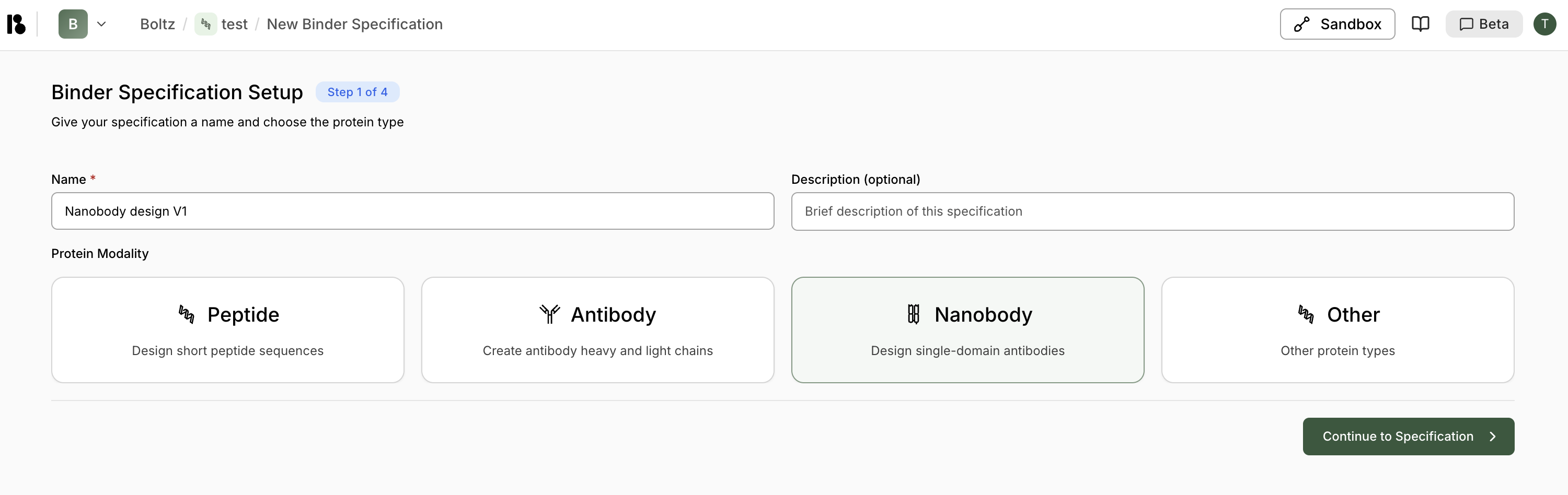
2. **Step 1: Setup** - Give your binder specification a name and choose the protein modality:
Design short peptide sequences
Create antibody heavy and light chains
Design single-domain antibodies
Other protein types
3. Click **"> Continue to Specification"**.
## Starting Specification
### Option 1: Structure-Based Specification
1. From your project dashboard, click **"+ Add"** in the Binder Specifications section.
2. **Step 1: Setup** - Give your binder specification a name and choose the protein modality:
Design short peptide sequences
Create antibody heavy and light chains
Design single-domain antibodies
Other protein types
3. Click **"> Continue to Specification"**.
## Starting Specification
### Option 1: Structure-Based Specification
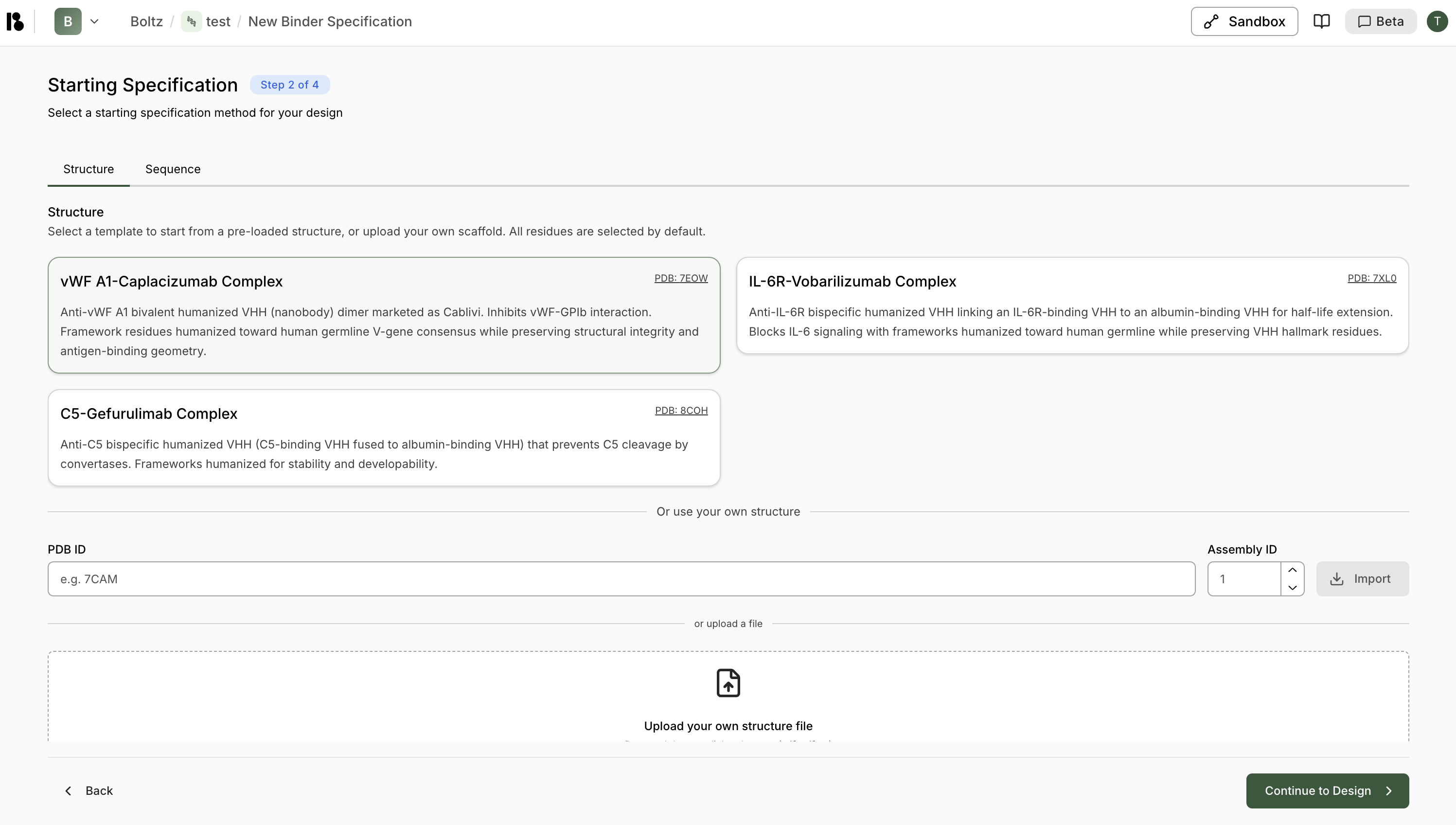 **Select a template:**
* Choose from pre-loaded structures (e.g., vWF A1-Caplacizumab Complex, IL-6R-Vobarilizumab Complex)
* Each template shows PDB ID and description
**Or import your own:**
* Enter a **PDB ID** and **Assembly ID** (default: 1), then click **"Import"**
* Or **upload a structure file** (.cif, .cif.gz, etc.)
### Option 2: Sequence-Based Specification
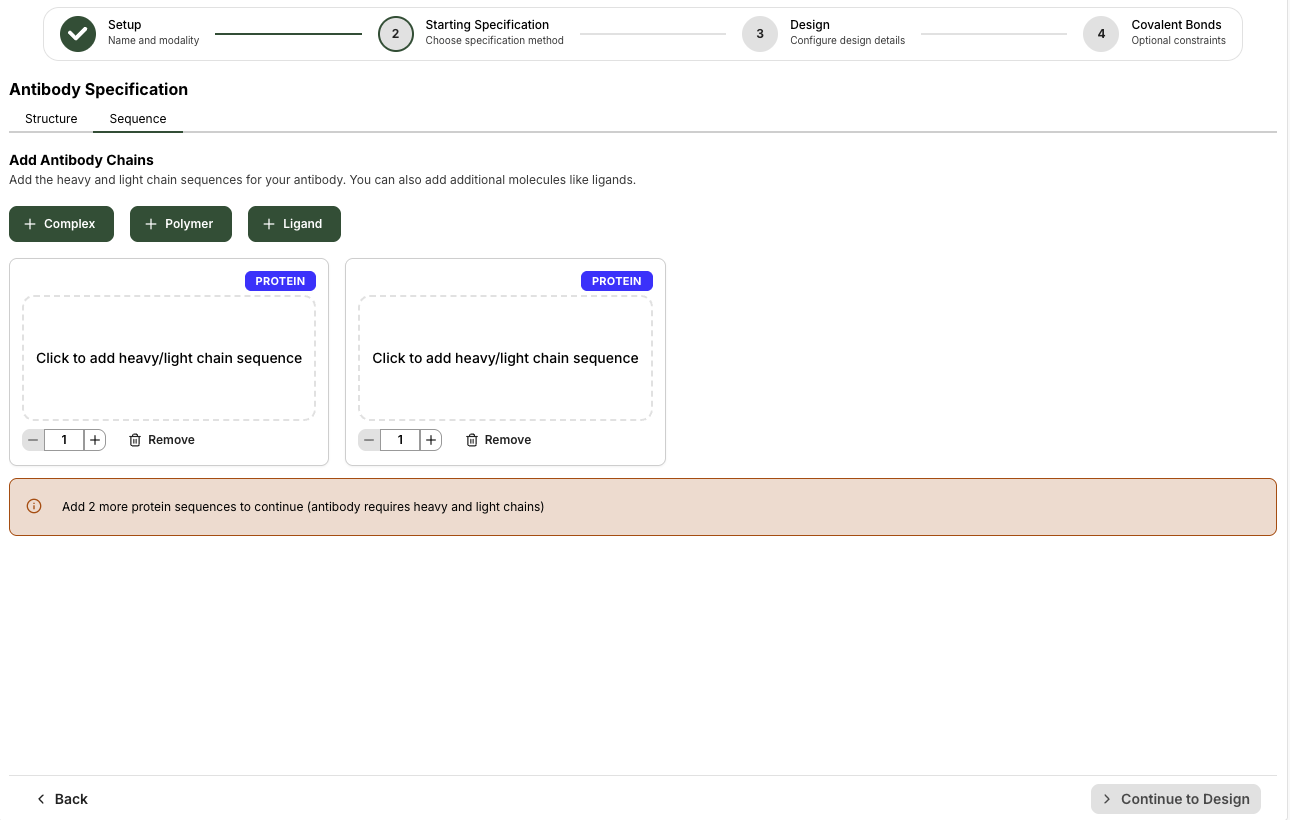
Click the **"Sequence"** tab to add sequences directly instead of using a structure.
## Select Residues
**Select a template:**
* Choose from pre-loaded structures (e.g., vWF A1-Caplacizumab Complex, IL-6R-Vobarilizumab Complex)
* Each template shows PDB ID and description
**Or import your own:**
* Enter a **PDB ID** and **Assembly ID** (default: 1), then click **"Import"**
* Or **upload a structure file** (.cif, .cif.gz, etc.)
### Option 2: Sequence-Based Specification
Click the **"Sequence"** tab to add sequences directly instead of using a structure.
## Select Residues
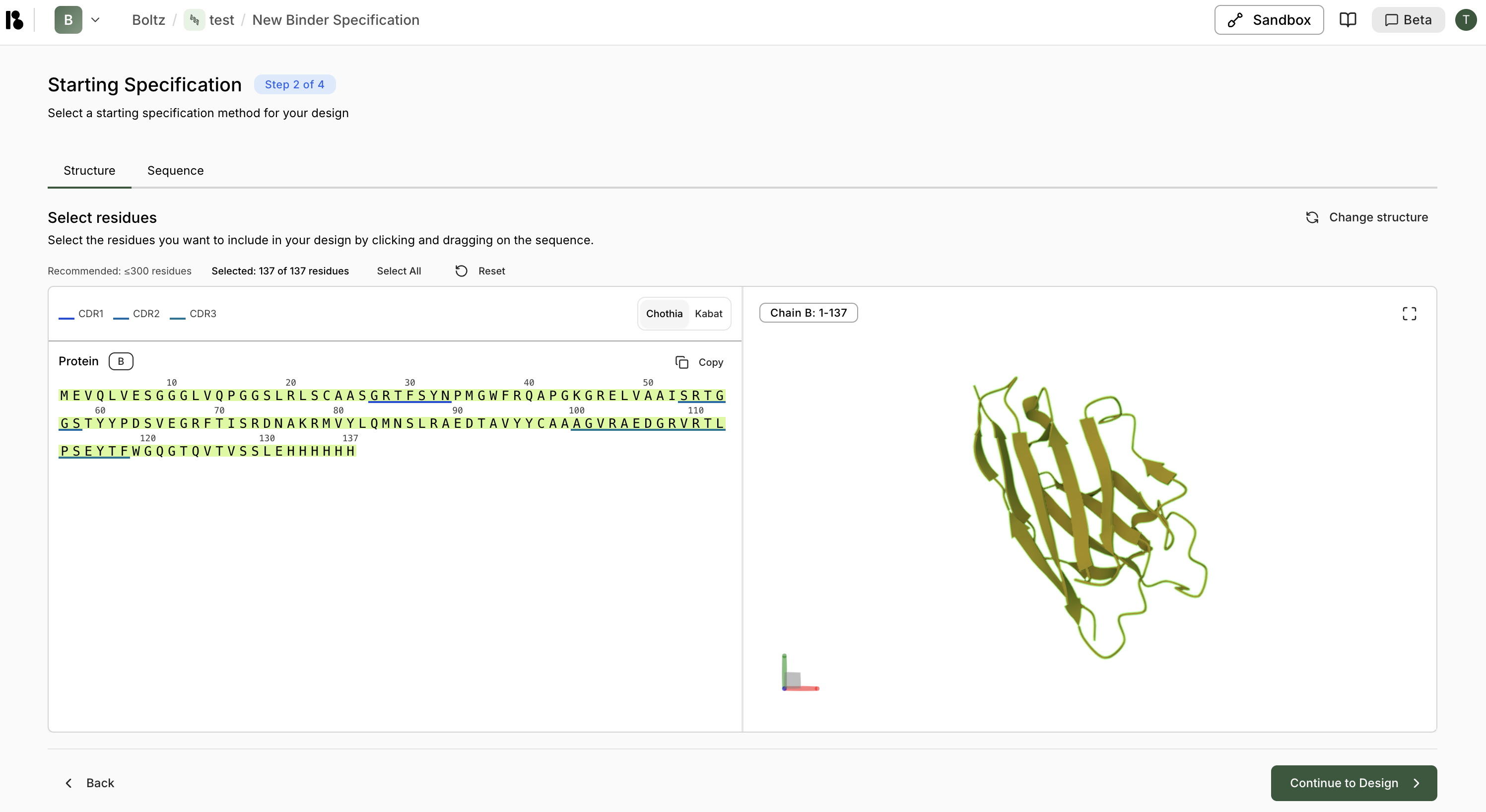
 Select the residues you want to include in your design:
* **Recommended:** ≤300 residues
* Use **CDR1**, **CDR2**, **CDR3** quick-select buttons for antibodies/nanobodies
* Or manually select by clicking and dragging on the sequence
* Selected residues are highlighted in green
* The 3D structure updates to show selected regions
**Numbering schemes:**
* **Chothia** (default) or **Kabat** numbering for antibodies/nanobodies
* Switch between schemes using the tabs above the sequence
Click **"> Continue to Design"** when done.
## Design Configuration
Configure design motifs and constraints:
Select the residues you want to include in your design:
* **Recommended:** ≤300 residues
* Use **CDR1**, **CDR2**, **CDR3** quick-select buttons for antibodies/nanobodies
* Or manually select by clicking and dragging on the sequence
* Selected residues are highlighted in green
* The 3D structure updates to show selected regions
**Numbering schemes:**
* **Chothia** (default) or **Kabat** numbering for antibodies/nanobodies
* Switch between schemes using the tabs above the sequence
Click **"> Continue to Design"** when done.
## Design Configuration
Configure design motifs and constraints:
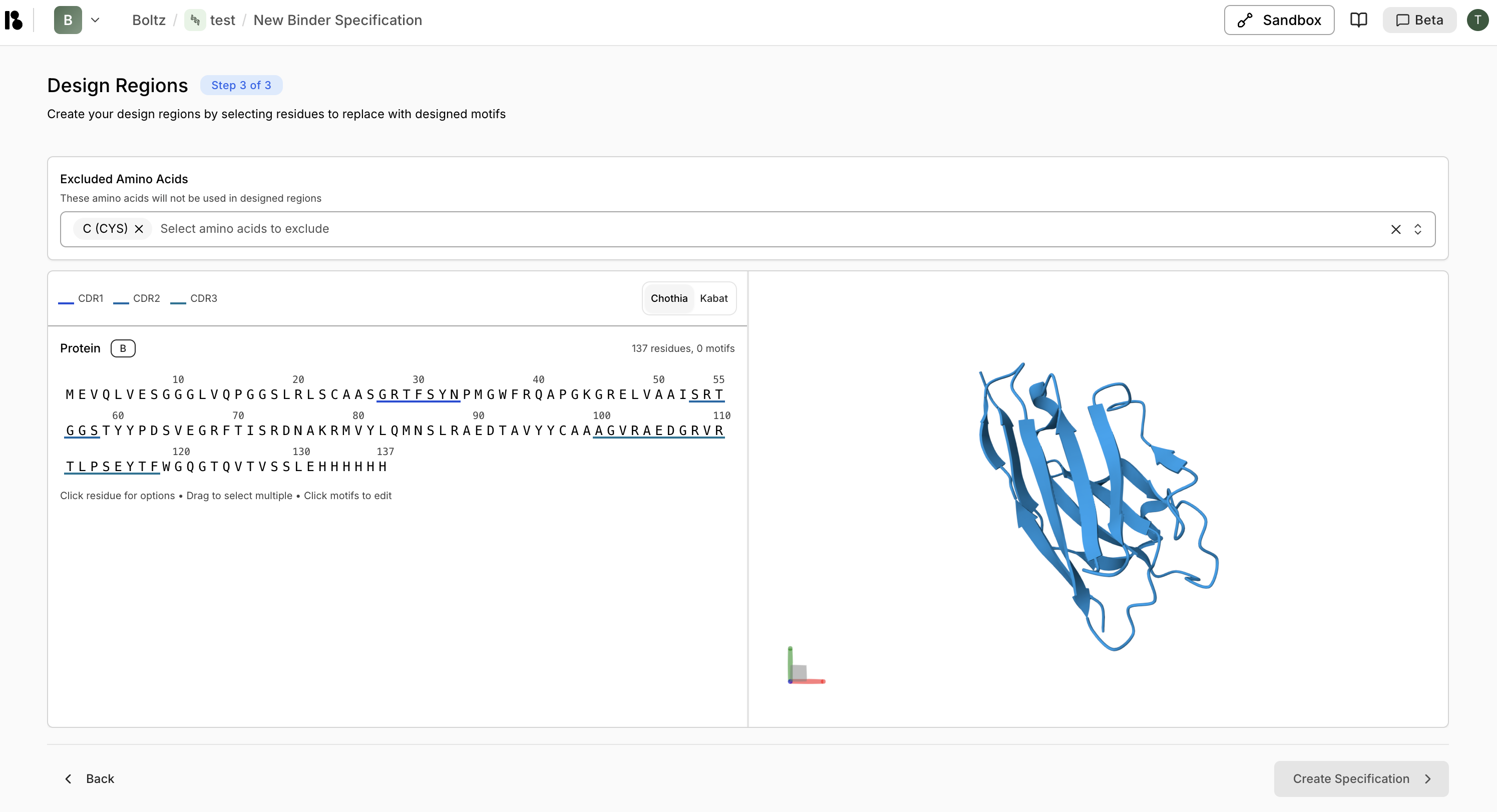
 ### Excluded Amino Acids
Specify amino acids that will not be used in designed regions (e.g., exclude Cysteine to prevent unwanted disulfide bonds).
### Excluded Amino Acids
Specify amino acids that will not be used in designed regions (e.g., exclude Cysteine to prevent unwanted disulfide bonds).
 ### Create Design Motifs
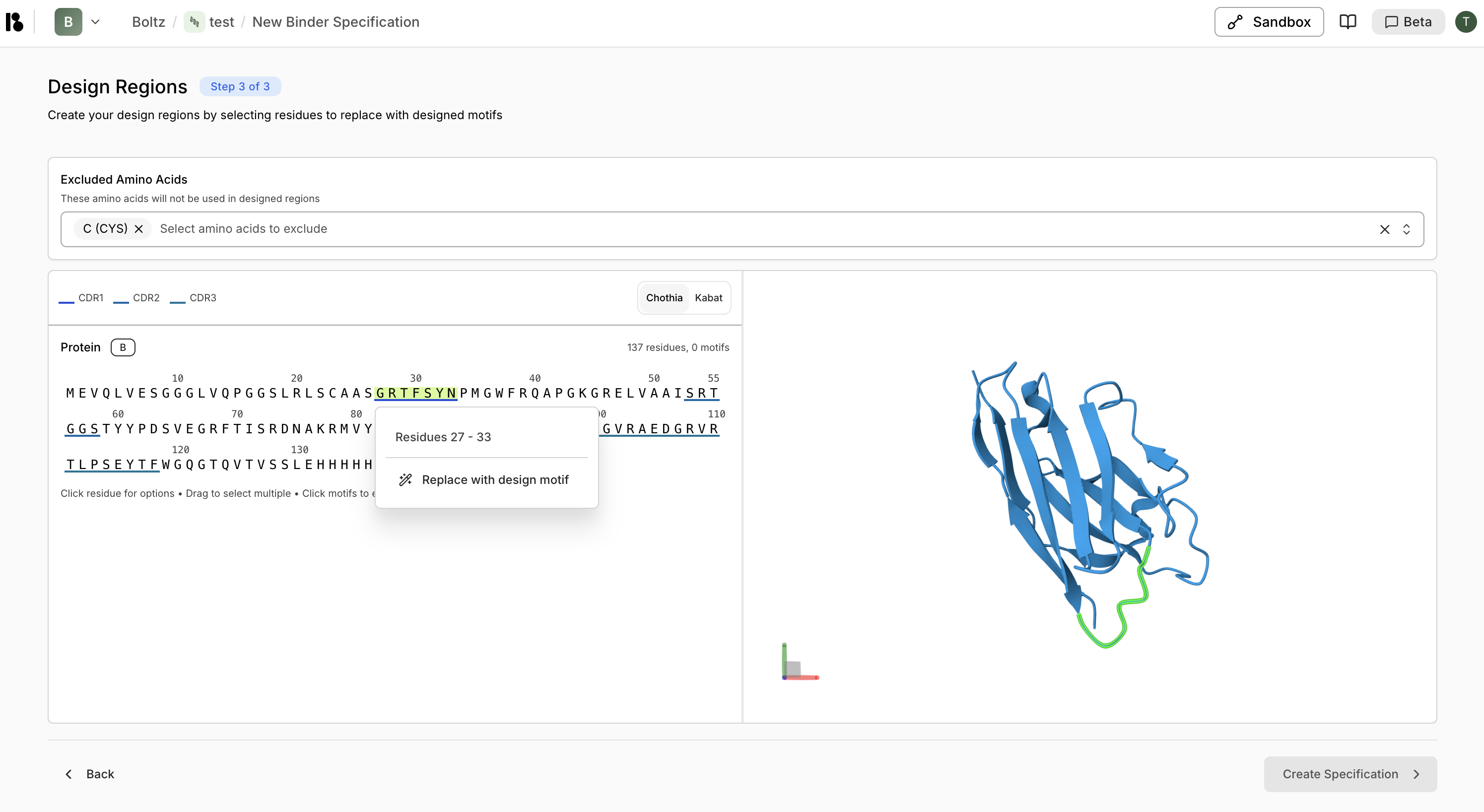
1. **Select residues** on the sequence or 3D structure
2. Right-click or use the context menu to **"Replace with design motif"**
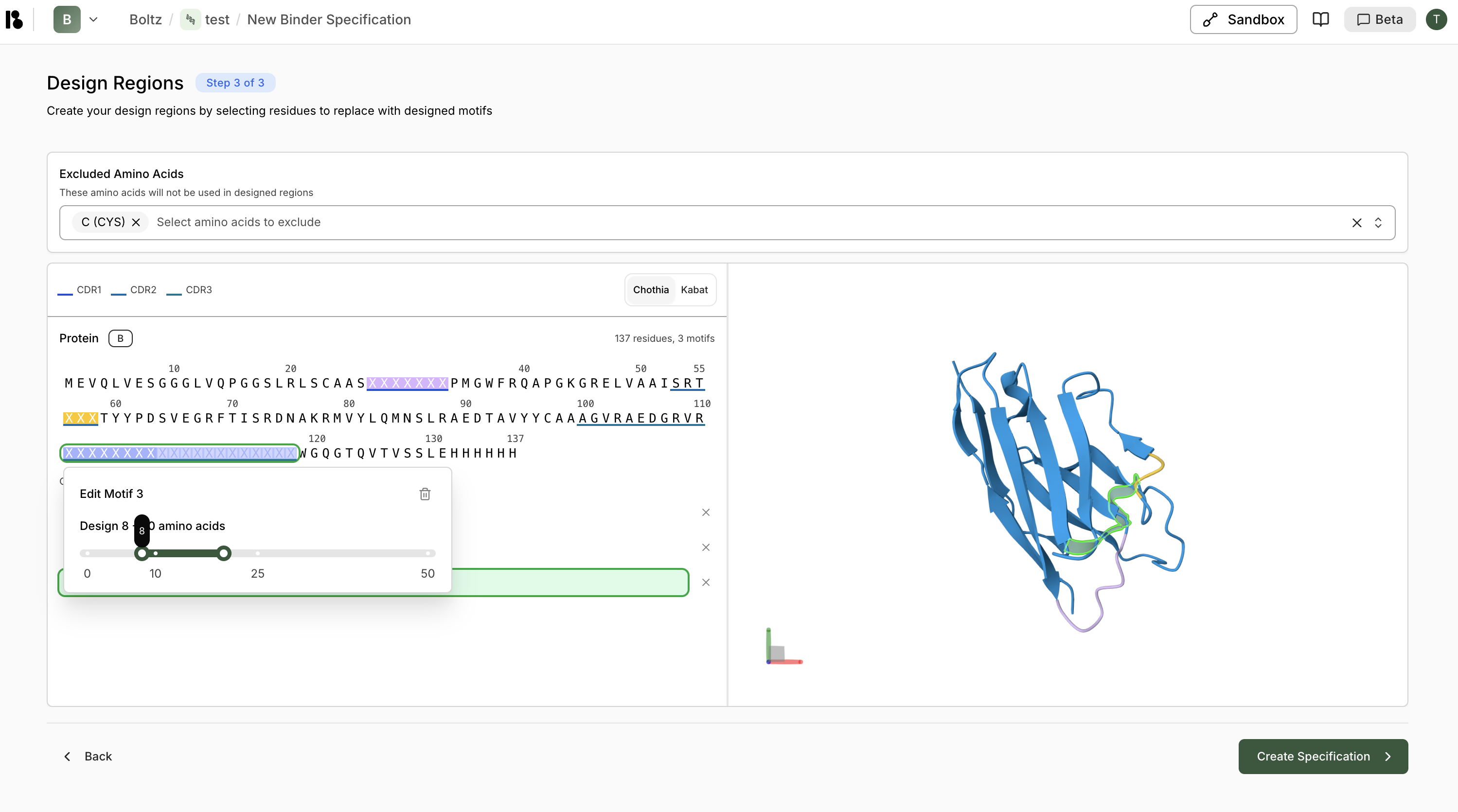
3. For CDR regions, you can specify:
* **Fixed length** - Replace with same number of residues
* **Variable length** - Specify a range (e.g., 10-25 residues for CDR3)
### Create Design Motifs
1. **Select residues** on the sequence or 3D structure
2. Right-click or use the context menu to **"Replace with design motif"**
3. For CDR regions, you can specify:
* **Fixed length** - Replace with same number of residues
* **Variable length** - Specify a range (e.g., 10-25 residues for CDR3)
 ### Motif Management
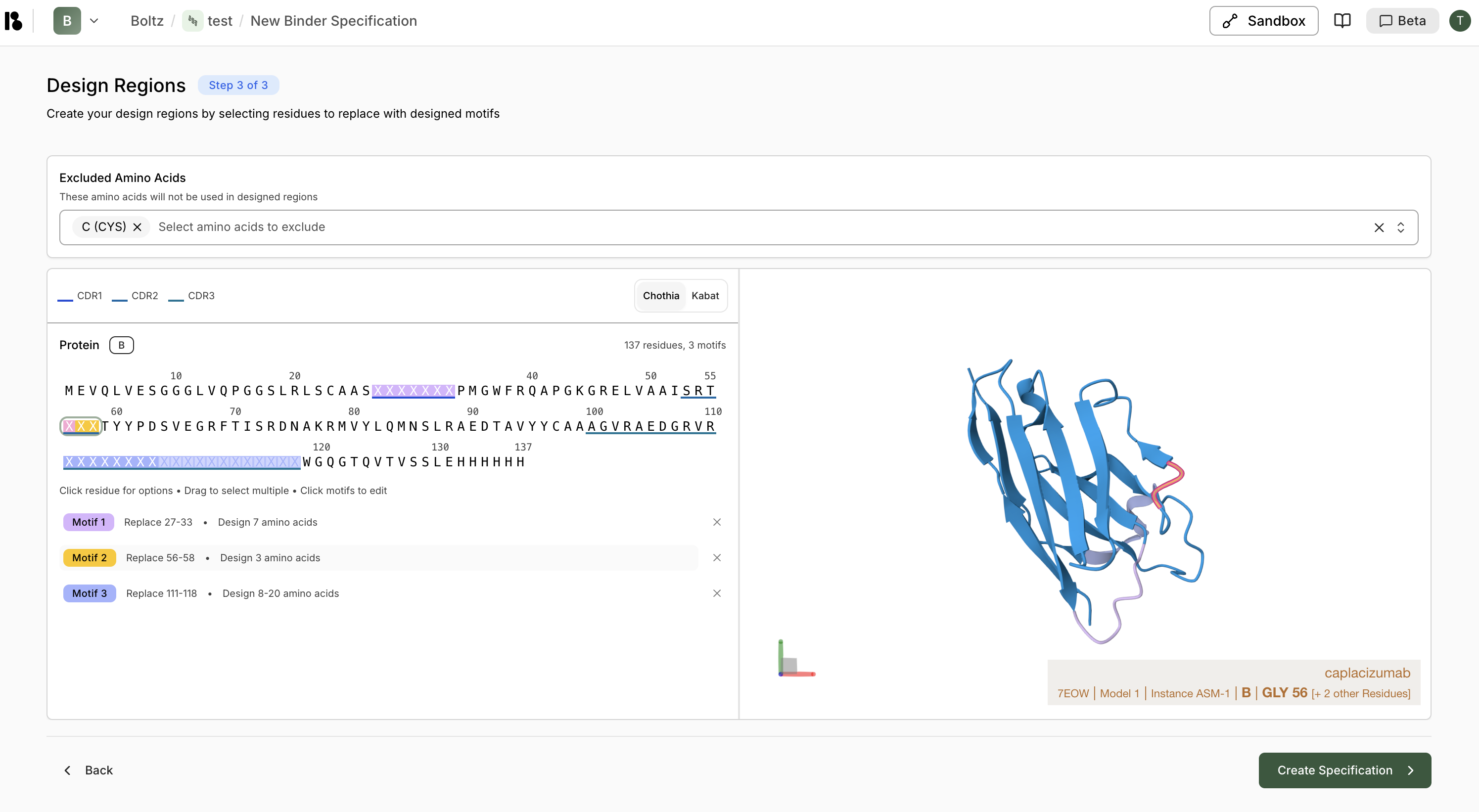
* Each motif is color-coded and shown in the sequence viewer
* Click a motif to edit it
* Click the **X** on a motif to remove it
* Summary shows total residues and number of motifs
Click **"> Create Specification"** when ready.
## After Binder Specification Creation
Once your binder specification is created, you'll see options to:
* **Generate binders with AI** - Start a virtual screen using this binder specification
* **Create Another Target** - Add another target to design binders against
* **Skip for now** - Continue later
### Motif Management
* Each motif is color-coded and shown in the sequence viewer
* Click a motif to edit it
* Click the **X** on a motif to remove it
* Summary shows total residues and number of motifs
Click **"> Create Specification"** when ready.
## After Binder Specification Creation
Once your binder specification is created, you'll see options to:
* **Generate binders with AI** - Start a virtual screen using this binder specification
* **Create Another Target** - Add another target to design binders against
* **Skip for now** - Continue later