> ## Documentation Index
> Fetch the complete documentation index at: https://docs.boltz.bio/llms.txt
> Use this file to discover all available pages before exploring further.
# Results and Triage
> Evaluate and organize protein binder candidates
## Overview
After a virtual screen completes, candidates are available in your experiment for evaluation, triage, and further analysis.
## Experiment View
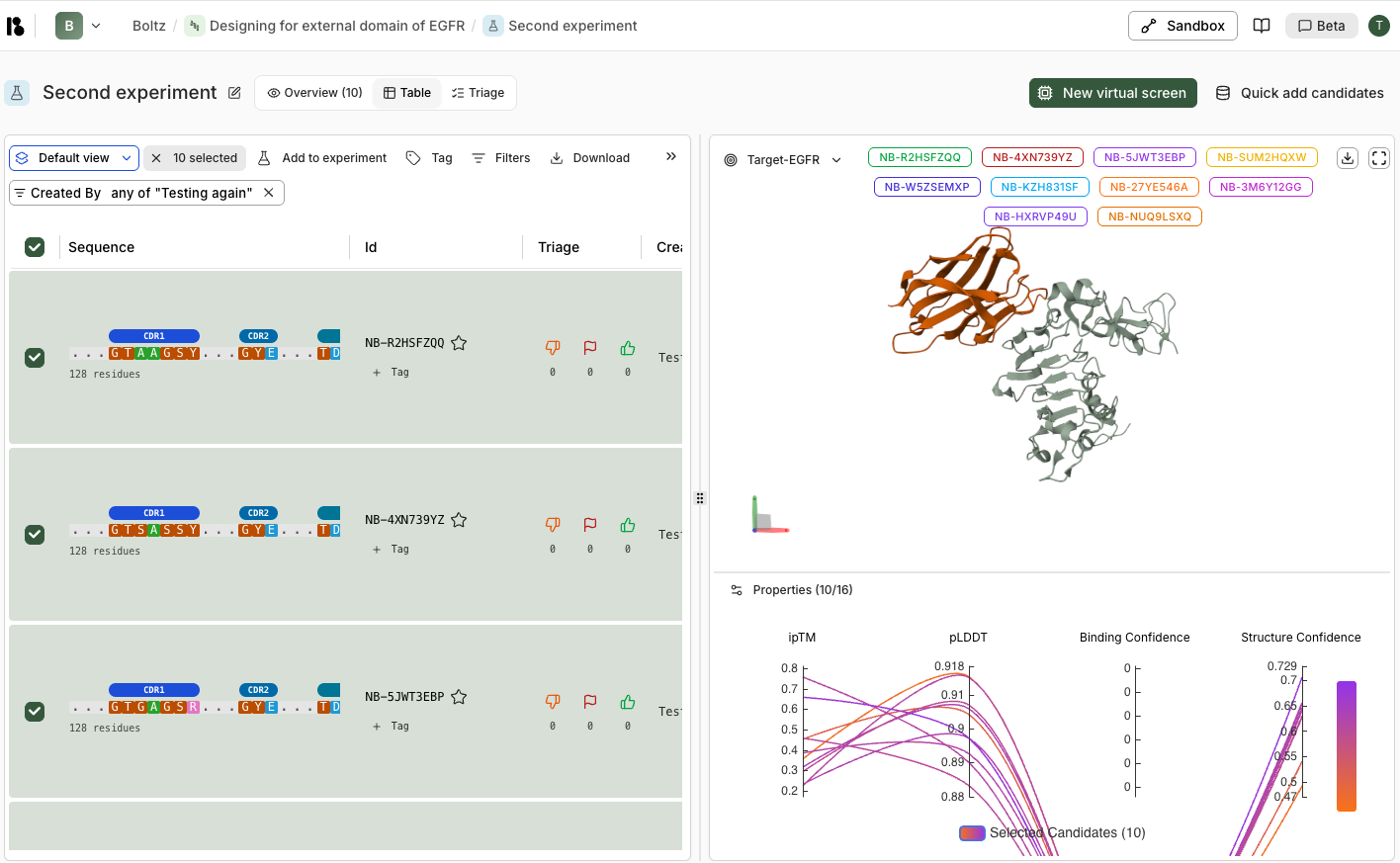 The experiment view provides three tabs:
* **Overview** - Summary statistics and metrics
* **Table** - List view of all candidates with filters and sorting
* **Triage** - Organized view for candidate evaluation
## Candidate Table
Each candidate row shows:
* **Sequence** - Protein sequence with CDR regions highlighted (for antibodies/nanobodies)
* **Id** - Unique identifier (e.g., NB-X7CMZA38)
* **Triage** - Thumbs down, flag, and thumbs up counts
* **Created By** - Which virtual screen generated this candidate
* **Created** - Timestamp when the candidate was generated
* **Binding Confidence** - Predicted binding affinity score for the target
* **Structure Confidence** - Overall structure quality score
### Filtering and Selection
* **Default view** dropdown - Pre-configured filter sets
* **Columns** button - Show/hide table columns
* **Filters** button - Add custom filters including:
* **Text filters** - Filter by Id, Created By, etc.
* **Number filters** - Filter by ipTM, pLDDT, Binding Confidence, Structure Confidence, Loop Fraction using sliders
* Filter chips show active filters and can be removed individually
* **Select candidates** - Use checkboxes to select multiple candidates
* **Download** - Export selected candidates
### Bulk Actions
When candidates are selected:
* **Add to experiment** - Move to another experiment
* **Tag** - Apply tags for organization
* **Download** - Export candidate data
## 3D Visualization
The right panel shows:
### Target Selection
* Dropdown to switch between targets
* Selected candidate IDs displayed as colored tags
* Download and fullscreen options
### 3D Structure Viewer
* Interactive 3D ribbon diagram showing:
* **Target** (light grey)
* **Binder candidates** (colored by selection)
* 3D axis indicator for orientation
* Rotate, zoom, and pan controls
### Properties Comparison
Compare metrics across selected candidates:
* **ipTM** - Interface predicted Template Modeling score
* **pLDDT** - Predicted Local Distance Difference Test (structure confidence)
* **Binding Confidence** - Predicted binding affinity
* **Structure Confidence** - Overall structure quality
Each chart shows all selected candidates as colored lines, making it easy to identify top performers.
## Triage View
The **Triage** tab provides a detailed view for evaluating individual candidates:
### Left Panel - Candidate Details
* **Sequence Viewer:**
* Full protein sequence with Framework Regions (FR) and Complementarity Determining Regions (CDR) highlighted
* CDR regions color-coded (CDR1, CDR2, CDR3)
* Residue numbers displayed above sequence
* Navigation arrows to move between candidates
* **Candidate Actions:**
* **Star** - Favorite a candidate
* **Thumbs down** - Reject candidate
* **Flag** - Mark for further review
* **Thumbs up** - Approve candidate
* **+ Tag** - Apply tags for organization
* **Properties and Descriptors:**
* **Properties tab** - View metrics (ipTM, pLDDT, Binding Confidence, Structure Confidence)
* **Descriptors tab** - View structural features (Loop Fraction, Helix Fraction, Sheet Fraction)
* Switch between **Table** and **Plot** views for each
### Right Panel - 3D Structure and Comparison
* **3D Structure Viewer:**
* Shows the selected candidate's binding pose with the target
* Binder colored orange, target colored light grey/green
* Interactive controls for rotation, zoom, and pan
* **Properties Comparison:**
* Parallel coordinates plot showing all candidates
* Selected candidate highlighted in purple
* Non-selected candidates shown in dark grey
* Compare across multiple properties simultaneously
## Triage Workflow
1. **Select candidates** - Use checkboxes or filters to narrow down
2. **Review 3D structures** - Examine binding poses in the viewer
3. **Compare properties** - Use charts to identify high-scoring candidates
4. **Triage actions:**
* **Thumbs down** - Reject candidate
* **Flag** - Mark for further review
* **Thumbs up** - Approve candidate
5. **Tag candidates** - Apply tags for organization (e.g., "high-affinity", "interesting-pose")
6. **Export** - Download selected candidates for further analysis
## Tips
* Start by filtering to top performers (high binding confidence)
* Review 3D structures to ensure poses are reasonable
* Compare multiple candidates side-by-side using the properties charts
* Use tags to organize candidates by different criteria
* Export promising candidates for experimental validation
The experiment view provides three tabs:
* **Overview** - Summary statistics and metrics
* **Table** - List view of all candidates with filters and sorting
* **Triage** - Organized view for candidate evaluation
## Candidate Table
Each candidate row shows:
* **Sequence** - Protein sequence with CDR regions highlighted (for antibodies/nanobodies)
* **Id** - Unique identifier (e.g., NB-X7CMZA38)
* **Triage** - Thumbs down, flag, and thumbs up counts
* **Created By** - Which virtual screen generated this candidate
* **Created** - Timestamp when the candidate was generated
* **Binding Confidence** - Predicted binding affinity score for the target
* **Structure Confidence** - Overall structure quality score
### Filtering and Selection
* **Default view** dropdown - Pre-configured filter sets
* **Columns** button - Show/hide table columns
* **Filters** button - Add custom filters including:
* **Text filters** - Filter by Id, Created By, etc.
* **Number filters** - Filter by ipTM, pLDDT, Binding Confidence, Structure Confidence, Loop Fraction using sliders
* Filter chips show active filters and can be removed individually
* **Select candidates** - Use checkboxes to select multiple candidates
* **Download** - Export selected candidates
### Bulk Actions
When candidates are selected:
* **Add to experiment** - Move to another experiment
* **Tag** - Apply tags for organization
* **Download** - Export candidate data
## 3D Visualization
The right panel shows:
### Target Selection
* Dropdown to switch between targets
* Selected candidate IDs displayed as colored tags
* Download and fullscreen options
### 3D Structure Viewer
* Interactive 3D ribbon diagram showing:
* **Target** (light grey)
* **Binder candidates** (colored by selection)
* 3D axis indicator for orientation
* Rotate, zoom, and pan controls
### Properties Comparison
Compare metrics across selected candidates:
* **ipTM** - Interface predicted Template Modeling score
* **pLDDT** - Predicted Local Distance Difference Test (structure confidence)
* **Binding Confidence** - Predicted binding affinity
* **Structure Confidence** - Overall structure quality
Each chart shows all selected candidates as colored lines, making it easy to identify top performers.
## Triage View
The **Triage** tab provides a detailed view for evaluating individual candidates:
### Left Panel - Candidate Details
* **Sequence Viewer:**
* Full protein sequence with Framework Regions (FR) and Complementarity Determining Regions (CDR) highlighted
* CDR regions color-coded (CDR1, CDR2, CDR3)
* Residue numbers displayed above sequence
* Navigation arrows to move between candidates
* **Candidate Actions:**
* **Star** - Favorite a candidate
* **Thumbs down** - Reject candidate
* **Flag** - Mark for further review
* **Thumbs up** - Approve candidate
* **+ Tag** - Apply tags for organization
* **Properties and Descriptors:**
* **Properties tab** - View metrics (ipTM, pLDDT, Binding Confidence, Structure Confidence)
* **Descriptors tab** - View structural features (Loop Fraction, Helix Fraction, Sheet Fraction)
* Switch between **Table** and **Plot** views for each
### Right Panel - 3D Structure and Comparison
* **3D Structure Viewer:**
* Shows the selected candidate's binding pose with the target
* Binder colored orange, target colored light grey/green
* Interactive controls for rotation, zoom, and pan
* **Properties Comparison:**
* Parallel coordinates plot showing all candidates
* Selected candidate highlighted in purple
* Non-selected candidates shown in dark grey
* Compare across multiple properties simultaneously
## Triage Workflow
1. **Select candidates** - Use checkboxes or filters to narrow down
2. **Review 3D structures** - Examine binding poses in the viewer
3. **Compare properties** - Use charts to identify high-scoring candidates
4. **Triage actions:**
* **Thumbs down** - Reject candidate
* **Flag** - Mark for further review
* **Thumbs up** - Approve candidate
5. **Tag candidates** - Apply tags for organization (e.g., "high-affinity", "interesting-pose")
6. **Export** - Download selected candidates for further analysis
## Tips
* Start by filtering to top performers (high binding confidence)
* Review 3D structures to ensure poses are reasonable
* Compare multiple candidates side-by-side using the properties charts
* Use tags to organize candidates by different criteria
* Export promising candidates for experimental validation