> ## Documentation Index
> Fetch the complete documentation index at: https://docs.boltz.bio/llms.txt
> Use this file to discover all available pages before exploring further.
# Virtual Screening
> Run AI-powered protein design campaigns
## Overview
Virtual screens generate protein binder candidates using AI. You can pause and resume screens at any time.
## Creating a New Virtual Screen
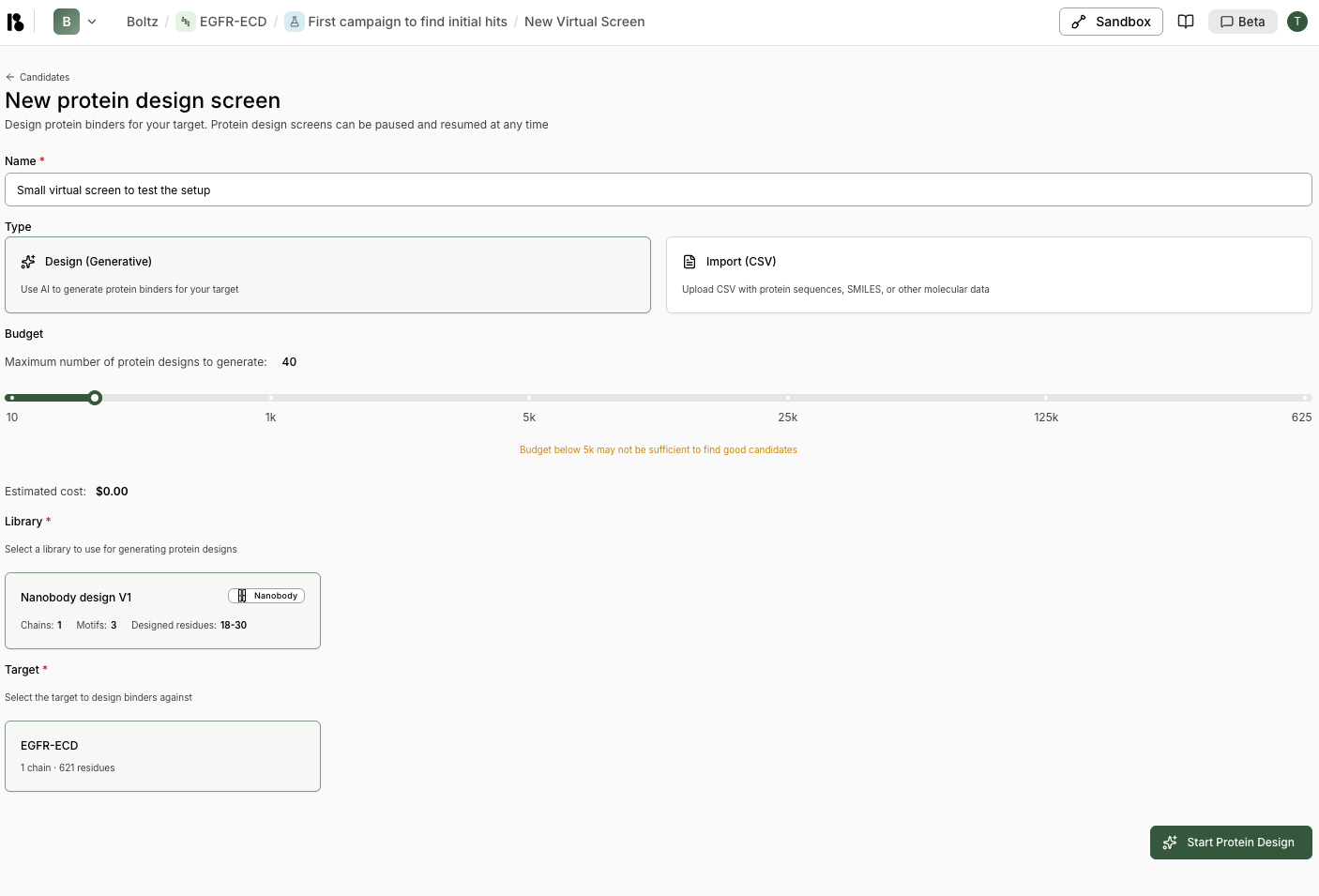 1. From an experiment, click **"New virtual screen"** or **"Virtual Screen"**.
2. **Name** - Enter a name for this protein design screen (e.g., "Small virtual screen to test the setup")
3. **Type** - Choose your screen type:
Use AI to generate protein binders for your target. This is the most common option for discovering new candidates.
Upload CSV with protein sequences, SMILES, or other molecular data to evaluate existing candidates.
4. **Budget** - Set the maximum number of protein designs to generate:
Budget below 5k may not be sufficient to find good candidates. Start with a small pilot (50-100 designs) to validate your setup, then scale up to 10k-100k designs for production runs.
* Use the slider to select: 10, 1k, 5k, 25k, 125k, or 625k
* Estimated cost is displayed below
5. **Design Specification** - Select a binder specification to use for generating protein designs
* Shows binder specification details: Chains, Motifs, Designed residues
* Only binder specifications added to your project are shown
6. **Target** - Select the target to design binders against
* Shows target details: number of chains and residues
* Only initialized targets are available
7. **Experiment** - Select an experiment for this virtual screen
* Choose from existing experiments or create a new one
* If no experiments exist, you'll be prompted to create one
8. Click **"Start Protein Design"** to begin.
## Monitoring Virtual Screens
1. From an experiment, click **"New virtual screen"** or **"Virtual Screen"**.
2. **Name** - Enter a name for this protein design screen (e.g., "Small virtual screen to test the setup")
3. **Type** - Choose your screen type:
Use AI to generate protein binders for your target. This is the most common option for discovering new candidates.
Upload CSV with protein sequences, SMILES, or other molecular data to evaluate existing candidates.
4. **Budget** - Set the maximum number of protein designs to generate:
Budget below 5k may not be sufficient to find good candidates. Start with a small pilot (50-100 designs) to validate your setup, then scale up to 10k-100k designs for production runs.
* Use the slider to select: 10, 1k, 5k, 25k, 125k, or 625k
* Estimated cost is displayed below
5. **Design Specification** - Select a binder specification to use for generating protein designs
* Shows binder specification details: Chains, Motifs, Designed residues
* Only binder specifications added to your project are shown
6. **Target** - Select the target to design binders against
* Shows target details: number of chains and residues
* Only initialized targets are available
7. **Experiment** - Select an experiment for this virtual screen
* Choose from existing experiments or create a new one
* If no experiments exist, you'll be prompted to create one
8. Click **"Start Protein Design"** to begin.
## Monitoring Virtual Screens
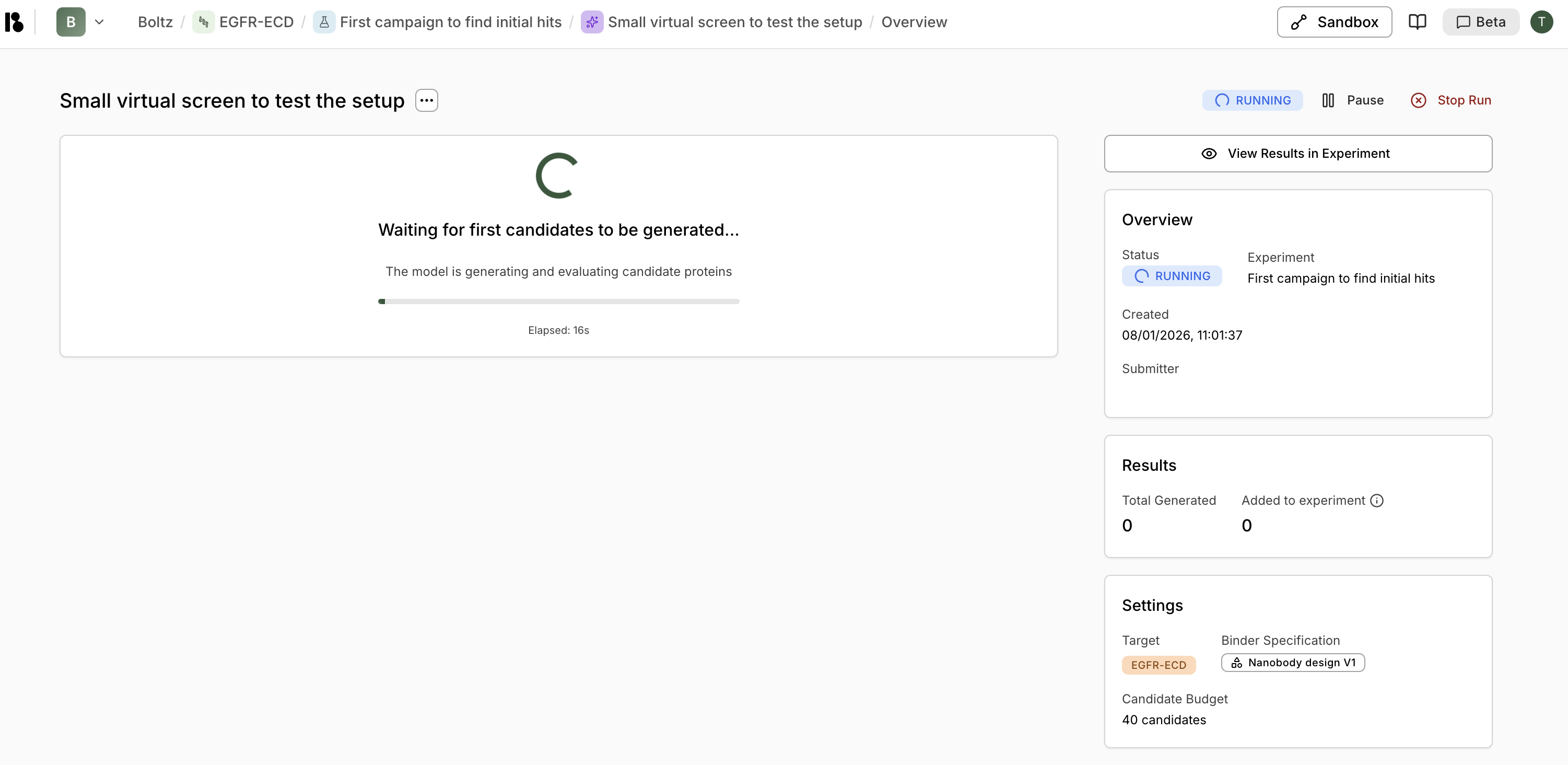 While a screen is running, you can:
* **View progress** - See "Waiting for first candidates to be generated..." with elapsed time
* **Pause** - Temporarily pause the screen
* **Stop Run** - Cancel the screen entirely
* **View Results in Experiment** - Navigate to see candidates as they're generated
### Status Indicators
* **RUNNING** (blue) - Screen is actively generating candidates
* **COMPLETED** (green) - Screen has finished generating all candidates
* **PAUSED** - Screen is paused and can be resumed
## Viewing Results
While a screen is running, you can:
* **View progress** - See "Waiting for first candidates to be generated..." with elapsed time
* **Pause** - Temporarily pause the screen
* **Stop Run** - Cancel the screen entirely
* **View Results in Experiment** - Navigate to see candidates as they're generated
### Status Indicators
* **RUNNING** (blue) - Screen is actively generating candidates
* **COMPLETED** (green) - Screen has finished generating all candidates
* **PAUSED** - Screen is paused and can be resumed
## Viewing Results
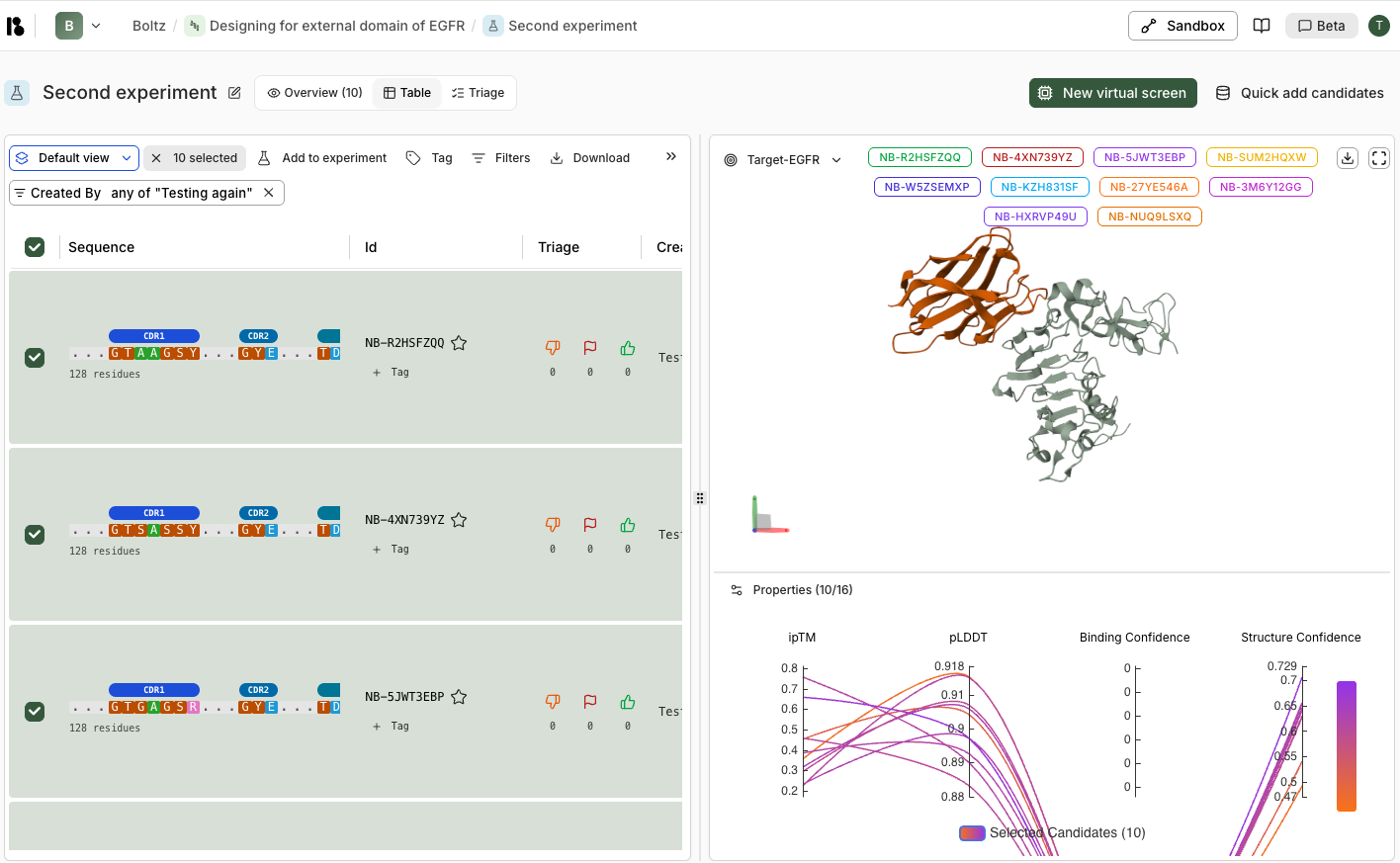 Once completed, the screen overview shows:
### Performance Metrics
**Top Performers: Binding Confidence**
* Tracks the best, 10th best, and 100th best candidates over time
* Shows how binding confidence improves as more candidates are processed
**Candidates Above Binding Confidence Thresholds**
* Cumulative count of candidates exceeding threshold values (>0.5, >0.6, >0.7, >0.8)
* Helps assess overall screen quality
### Screen Details
* **Status:** COMPLETED
* **Total Generated:** Number of candidates created
* **Added to experiment:** Number automatically added (top performers)
* **Settings:** Binder specification modality, chains, candidate budget
Click **"View Results in Experiment"** to see all candidates and begin triage.
Once completed, the screen overview shows:
### Performance Metrics
**Top Performers: Binding Confidence**
* Tracks the best, 10th best, and 100th best candidates over time
* Shows how binding confidence improves as more candidates are processed
**Candidates Above Binding Confidence Thresholds**
* Cumulative count of candidates exceeding threshold values (>0.5, >0.6, >0.7, >0.8)
* Helps assess overall screen quality
### Screen Details
* **Status:** COMPLETED
* **Total Generated:** Number of candidates created
* **Added to experiment:** Number automatically added (top performers)
* **Settings:** Binder specification modality, chains, candidate budget
Click **"View Results in Experiment"** to see all candidates and begin triage.