> ## Documentation Index
> Fetch the complete documentation index at: https://docs.boltz.bio/llms.txt
> Use this file to discover all available pages before exploring further.
# Virtual Screening - Setup
> Run generative designs or screen custom libraries
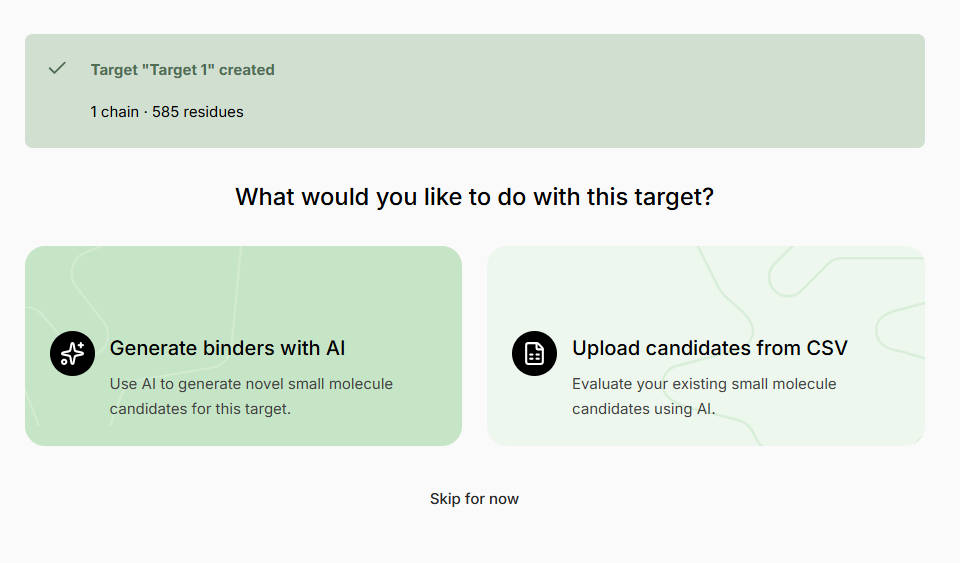
Once a Target is created, Boltz Lab witll guide you through starting your first **Virtual Screen**
 ## Creating an Experiment
Follow the instruction and select **+** **Create New Experiment** fromprompts
## Creating an Experiment
Follow the instruction and select **+** **Create New Experiment** fromprompts
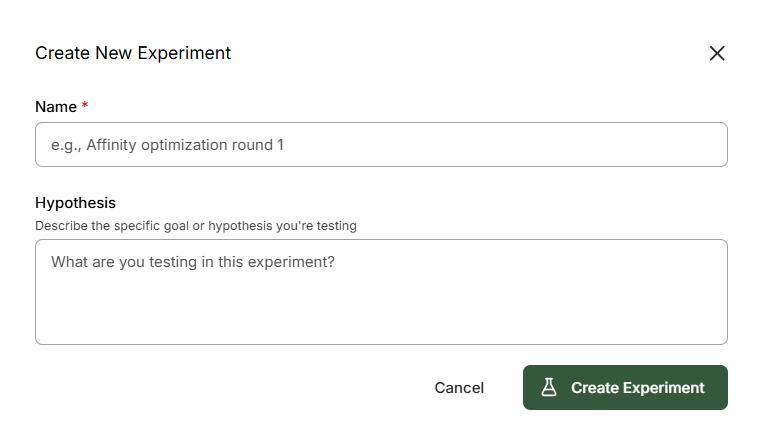 Give the **Experiment** a name and a hypothesis that describes the work being carried out. The Experiment space is collaborative and accessible to other users within the organization.
**Name:** Experiment 1
**Hypothesis:** Molecules for screening
**Name:** WT Kinase Series 1
**Hypothesis:** Exploring H-bond donors at R2 position of series core to improve kinase binding affinity to wild-type Kinase A, while maintaining solubility. Enumerated library from Supplier building-block library.
To continue, click **New Virtual Screen**.
***
## Generative Virtual Screen
A **Generative** screen uses generative AI models and active learning to search molecular space and find binders for the selected Target, optimizing the predicted binding confidence.
Give the **Experiment** a name and a hypothesis that describes the work being carried out. The Experiment space is collaborative and accessible to other users within the organization.
**Name:** Experiment 1
**Hypothesis:** Molecules for screening
**Name:** WT Kinase Series 1
**Hypothesis:** Exploring H-bond donors at R2 position of series core to improve kinase binding affinity to wild-type Kinase A, while maintaining solubility. Enumerated library from Supplier building-block library.
To continue, click **New Virtual Screen**.
***
## Generative Virtual Screen
A **Generative** screen uses generative AI models and active learning to search molecular space and find binders for the selected Target, optimizing the predicted binding confidence.
.png?fit=max&auto=format&n=01Dj948NLM75wx38&q=85&s=0b0cb58ddcc8944cc9d508b57a333034) ### Parameters
If multiple Targets are added to the Design Project, select the target you want to optimize affinity for.
By default, a generative screen searches within the expanded \~75B Enamine REAL Space. This ensures all output molecules are theoretically synthesizable. Alternatively, choose not to apply any chemical-space filter.
**Normal Filtering** (default): Curated filtering excluding most problematic molecules but allowing some motifs (phenols, anilines, aryl halides, esters) that can be optimized away in later design cycles.
**Extra Filtering**: Extends to include functional groups with chemical stability issues.
**Aggressive Filtering**: Applies aggressive filtering to remove edge cases.
Specify filters based on RDKit molecular descriptors to keep small-molecule generation within your desired molecular/physicochemical space. **Preset** filters are available for convenience.
Set filters at generation time rather than filtering afterwards to optimize compute usage.
Sets the maximum number of molecules for generation and scoring. You can pause/stop the screen at any time.
It is recommended **not** to run fewer than 20,000 molecules, as this typically does not allow convergence in the active learning model.
***
## Library Virtual Screen
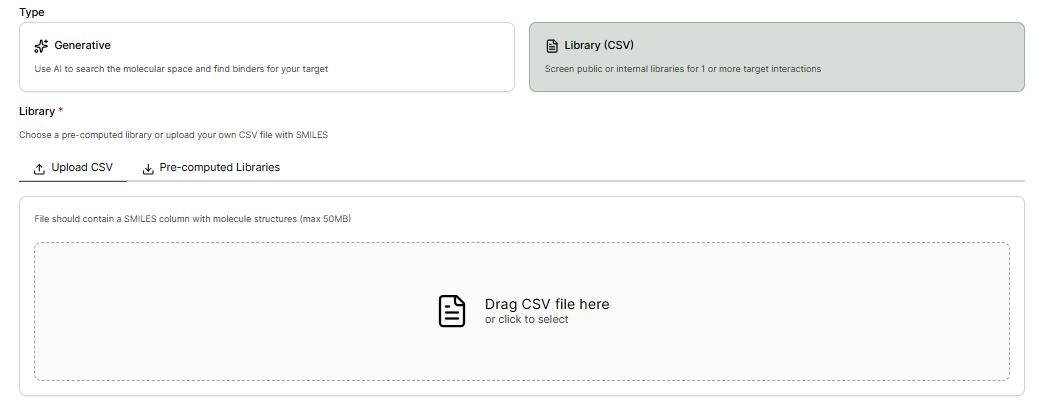
**Custom** or **Pre-computed Libraries** can alternatively be screened by selecting **Library (CSV)**.
### Upload CSV
The file should contain a **SMILES** column with the molecules identifier.
### Parameters
If multiple Targets are added to the Design Project, select the target you want to optimize affinity for.
By default, a generative screen searches within the expanded \~75B Enamine REAL Space. This ensures all output molecules are theoretically synthesizable. Alternatively, choose not to apply any chemical-space filter.
**Normal Filtering** (default): Curated filtering excluding most problematic molecules but allowing some motifs (phenols, anilines, aryl halides, esters) that can be optimized away in later design cycles.
**Extra Filtering**: Extends to include functional groups with chemical stability issues.
**Aggressive Filtering**: Applies aggressive filtering to remove edge cases.
Specify filters based on RDKit molecular descriptors to keep small-molecule generation within your desired molecular/physicochemical space. **Preset** filters are available for convenience.
Set filters at generation time rather than filtering afterwards to optimize compute usage.
Sets the maximum number of molecules for generation and scoring. You can pause/stop the screen at any time.
It is recommended **not** to run fewer than 20,000 molecules, as this typically does not allow convergence in the active learning model.
***
## Library Virtual Screen
**Custom** or **Pre-computed Libraries** can alternatively be screened by selecting **Library (CSV)**.
### Upload CSV
The file should contain a **SMILES** column with the molecules identifier.
 ### Pre-computed Libraries
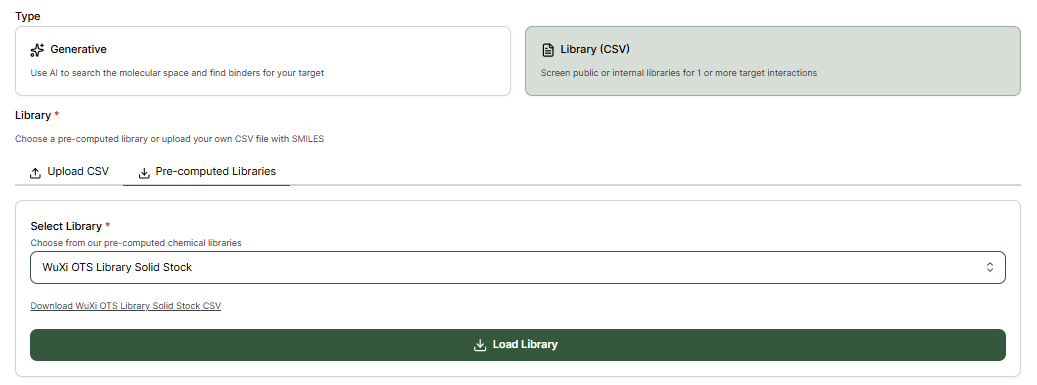
Pre-computed vendor compound libraries can be selected without needing to upload CSV files.
### Pre-computed Libraries
Pre-computed vendor compound libraries can be selected without needing to upload CSV files.
 **Cross-screening tip:** For screening molecules against multiple targets, export the desired molecule designs from your Experiment or Virtual Screen, and use them as a custom library in the same or new Experiment for cross-target/off-target Boltz predictions.