

The Design tab currently supports manual molecule input using the built-in Ketcher drawing tool. Additional capabilities will be deployed in future releases.
Adding Molecules to Design Tab
There are three ways to add molecules from your virtual screen results to the Design workspace: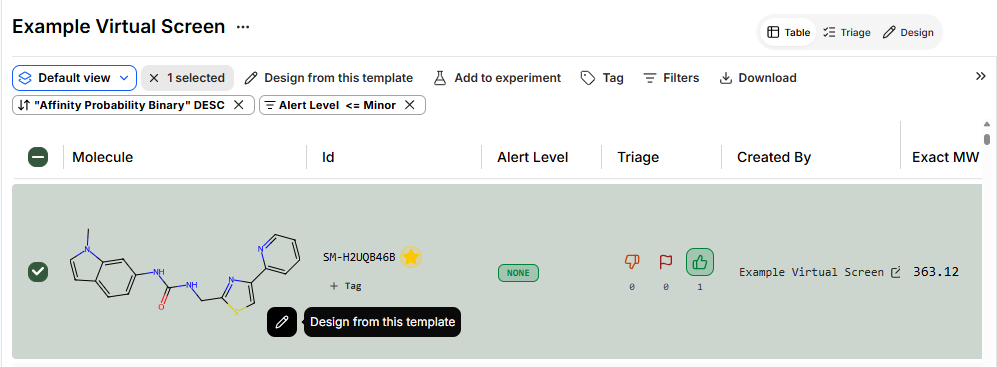
- In the Table view, hover over any molecule structure
- A pen icon (✏️) appears with “Design from this template” tooltip
- Click to add the molecule to the Design tab
- Use the checkbox to select one or more molecules in the Table
- Click Design from this template in the top menu
- Choose to either:
- Add to existing designs already in the Design tab
- Replace existing molecules in the Design tab
- Switch to the Design tab and start drawing - it’s that simple!
Design Tab Interface
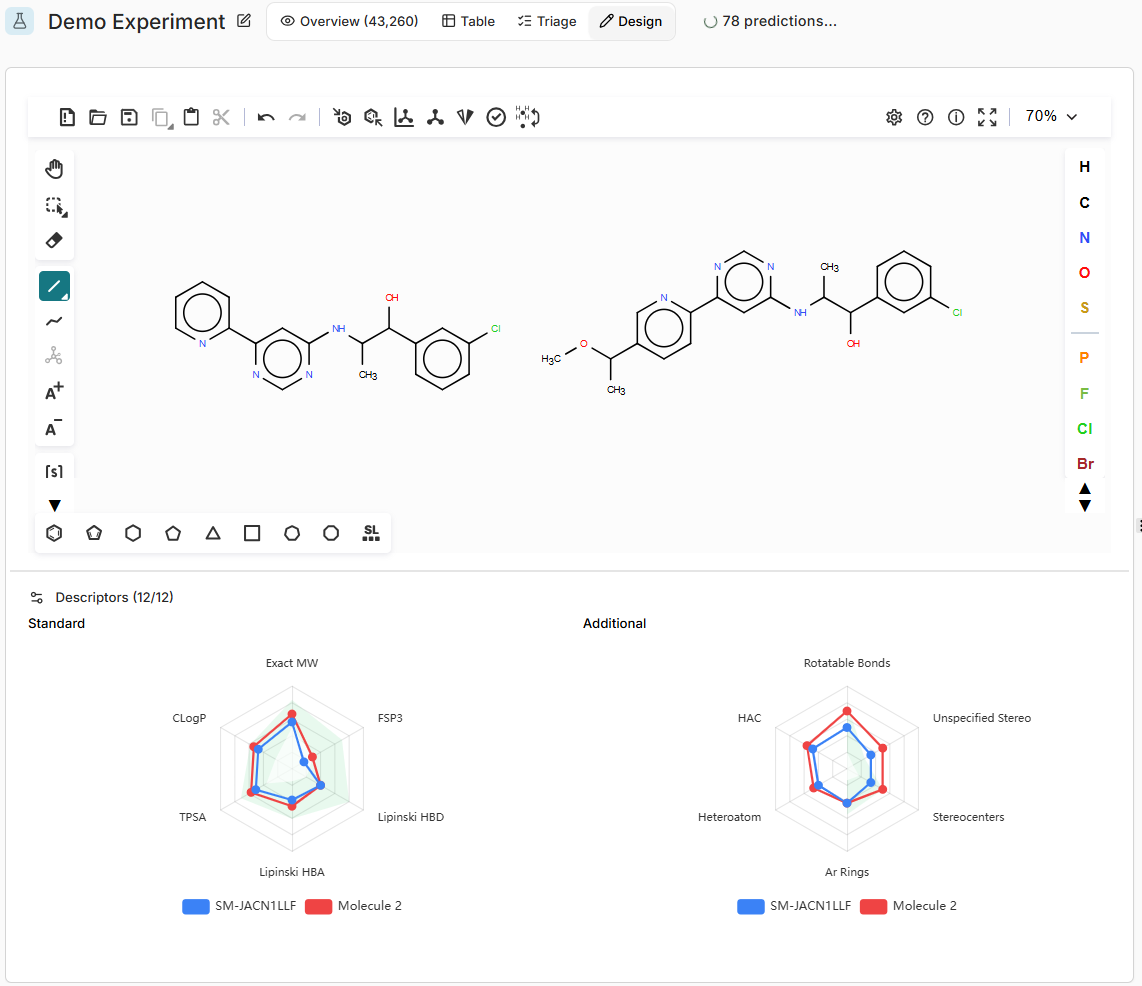
Ketcher Molecular Editor (Left Panel)
Ketcher Molecular Editor (Left Panel)
Full-featured molecular drawing interface for creating and editing structures:
- Draw new molecules from scratch
- Edit molecules added from results
- Create copies and variants
- Standard drawing tools (bonds, atoms, rings, functional groups)
- Multiple molecules can be worked on simultaneously
3D Structure Viewer (Right Panel)
3D Structure Viewer (Right Panel)
Displays the Boltz prediction and pocket for selected molecules:
- Target selection dropdown (if multiple targets exist)
- Interactive 3D structure visualization - highlight sidechains and residues
- Rotatable and zoomable view
Property Radar Plots (Bottom Left)
Property Radar Plots (Bottom Left)
Two radar charts showing molecular properties for all molecules in the workspace. These update live as you edit structures in the Ketcher editor.Standard descriptors:
- Exact MW (Molecular Weight)
- CLogP (Lipophilicity)
- TPSA (Topological Polar Surface Area)
- Lipinski HBD (Hydrogen Bond Donors)
- Lipinski HBA (Hydrogen Bond Acceptors)
- FSP3 (Fraction sp3 carbons)
- Rotatable Bonds
- HAC (Heavy Atom Count)
- Heteroatom count
- Stereocenters
- Unspecified Stereo
- Ar Rings (Aromatic Rings)
Molecule Preview (Bottom Right)
Molecule Preview (Bottom Right)
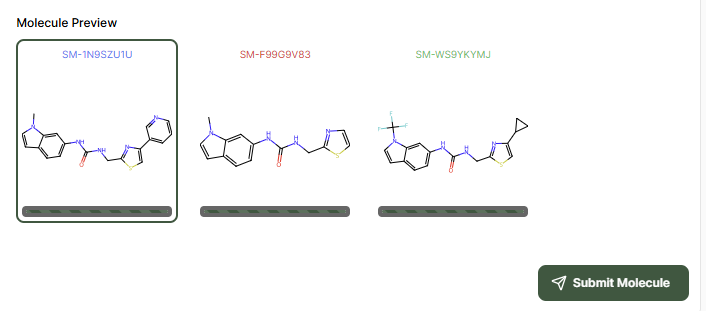
Shows all molecules queued for submission:
- Thumbnail structures with IDs
- Multiple molecules can be submitted together
- Visual confirmation before submission
Working with Molecules
1
Add or draw molecules
Either add molecules from your results (using “Design from this template”) or draw new molecules using the Ketcher editor.
2
Edit structures
Use the Ketcher drawing tools to modify structures - add substituents, change ring systems, modify functional groups.
3
Review properties
The radar plots update live as you edit - watch how your modifications affect molecular properties in real-time. Each molecule’s profile is overlaid for direct comparison.
4
Preview designs
Verify all molecules appear correctly in the Molecule Preview panel at the bottom right.
5
Submit molecules
Click Submit Molecule to proceed to target selection and add these designs to your virtual screen.
Submitting Designs
Finding Your Designs in Results
After submission, locate your manually created designs in the results: Filter by creator:- In the Table view, use the Created By column
- Filter or sort to show molecules you submitted via the Design tab
- Use date filters to show recently submitted designs
- Helpful for distinguishing manual designs from generative campaign outputs
Use Cases
- Manual Optimization
- Focused Library
- Property-Guided Design
- Hypothesis Testing
Select a hit from your results, then use the Design tab to manually create analogs by modifying specific substituents or functional groups based on your medicinal chemistry expertise.
Best Practices
Compare Side-by-Side
Work with 2-3 molecules simultaneously to compare property profiles directly on the radar plots
Tag After Submitting
Apply tags to manually designed molecules for easy tracking in the results table
Use Live Radar Plots
Take advantage of live property updates - modify structures and immediately see how CLogP, MW, and other descriptors change
Iterate Based on Results
Review binding predictions of submitted designs, then create refined versions in new Design sessions