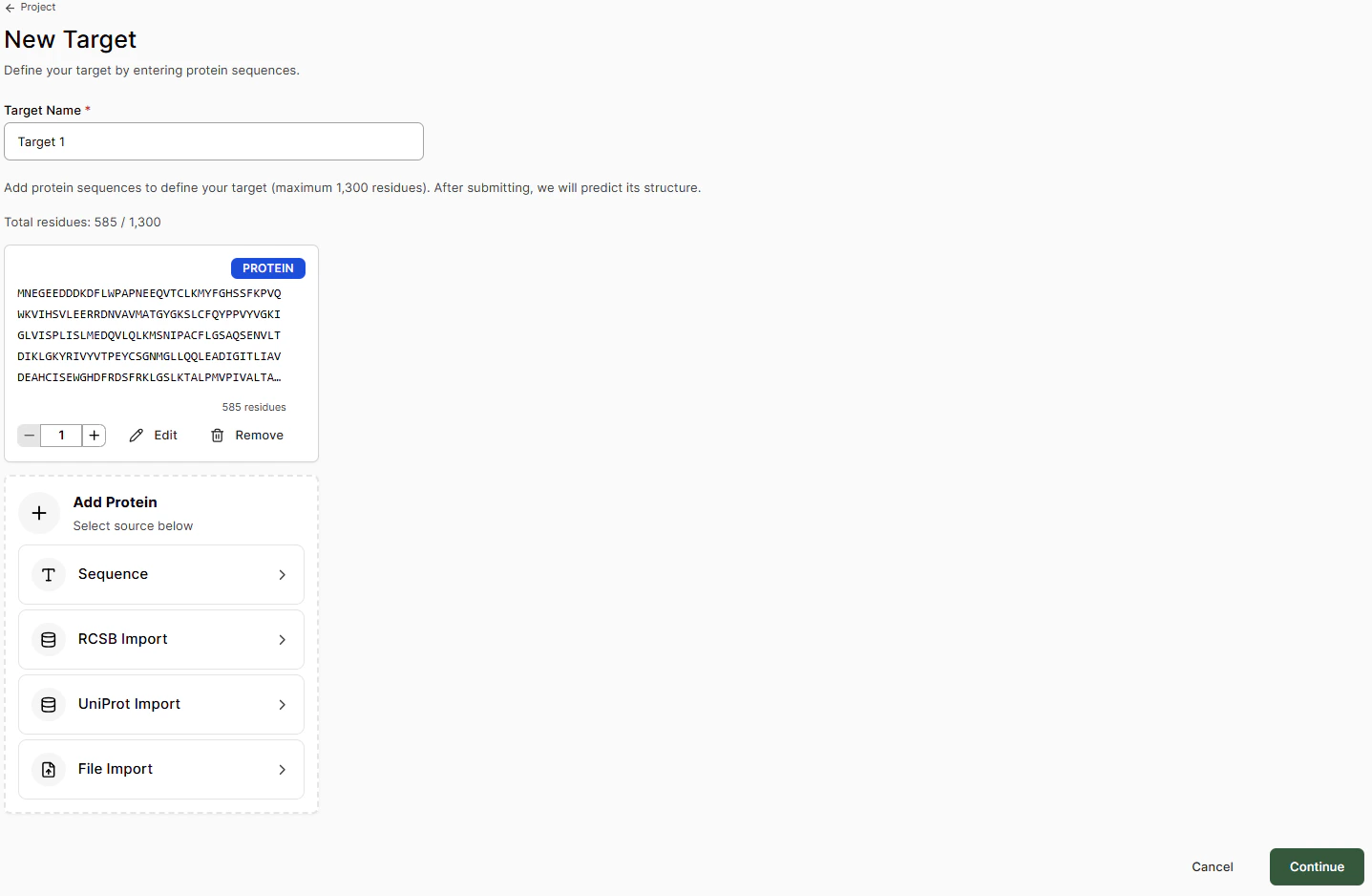
Add the target name and the amino acid sequence via one of the following options:
Import Method
Description
Sequence
Paste the FASTA sequence and select any post-translational mutations or modifications
RCSB Import
Add sequence via the RCSB-PDB ID code of a deposited crystal structure
UniProt Import
Add sequence via the UniProt code
File Import
Add sequence from a .cif structure file
Targets are not restricted to the main receptor of interest in a project. Additional off-target receptors, mutants, homologs, etc., can be added within a Design Project for Boltz structure and binding affinity assessment.
At this point, targets can only be formed by protein chains. Co-factors and RNA/DNA targets are not yet supported for small-molecule projects.
When ready, click Create Target. The apo Boltz predicted structure will then be generated.
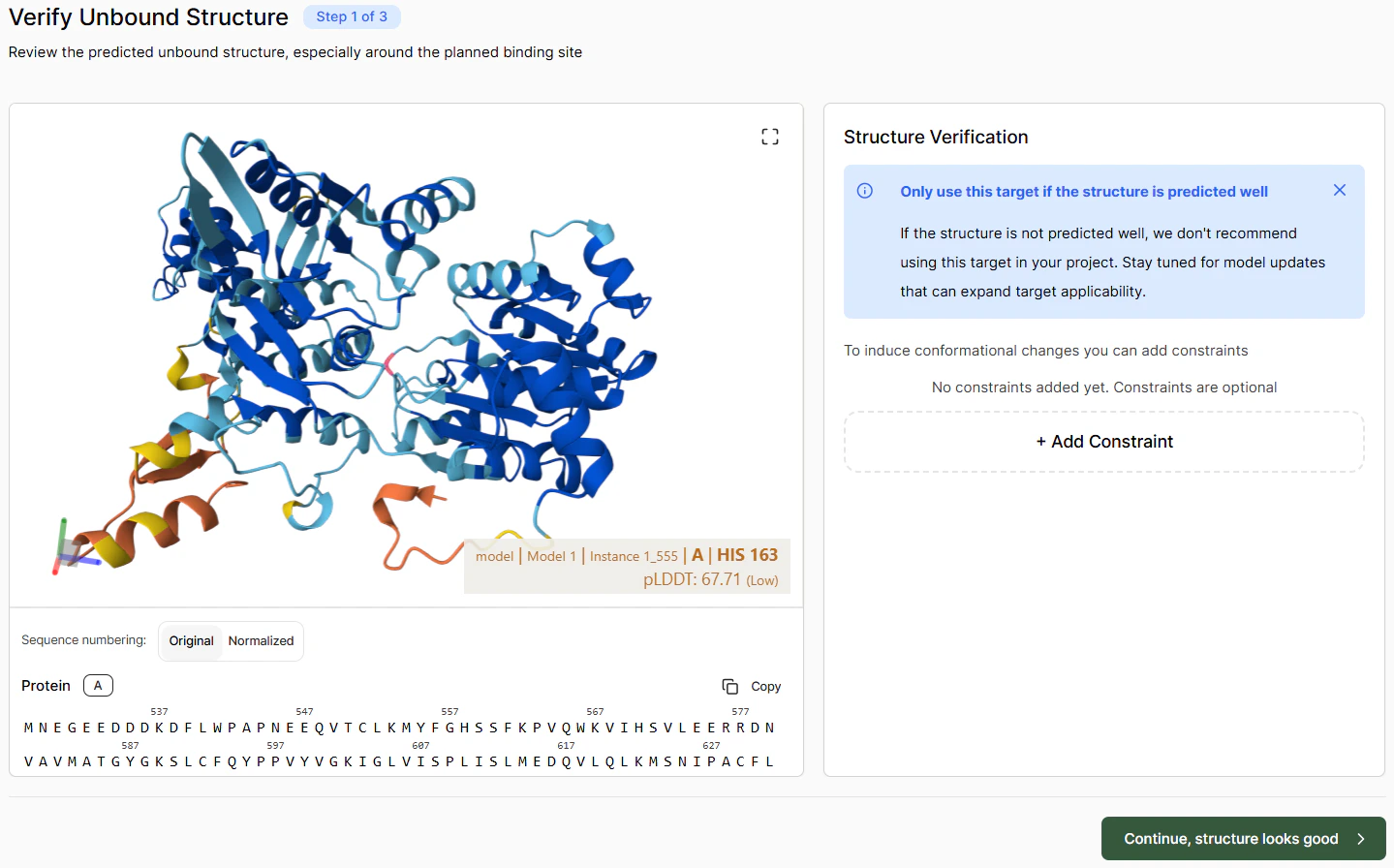
Verify that the unbound structure looks roughly correct. If there are particular issues, you can try solving them by adding constraints. Once satisfied with the apo pose, click Continue.
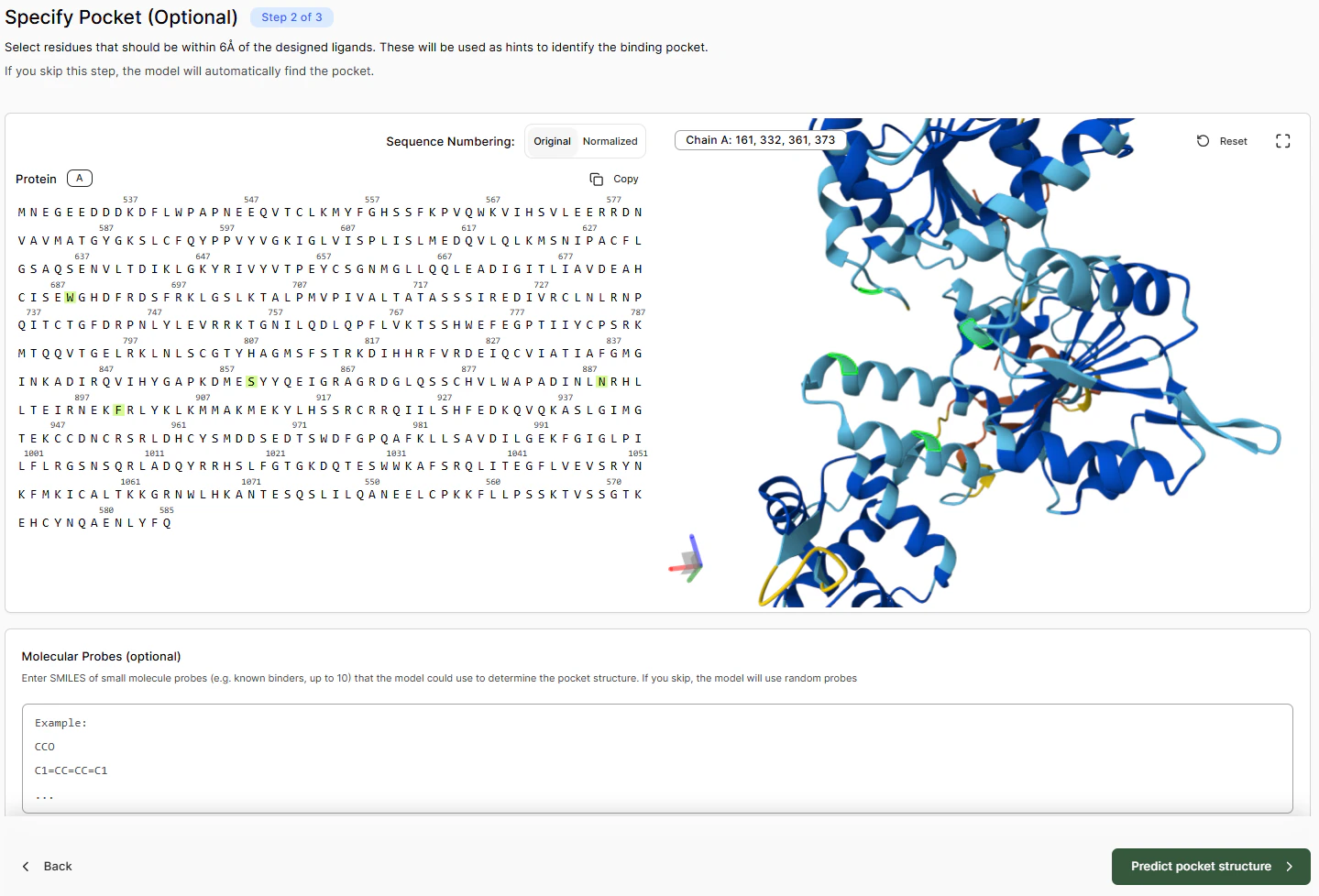
Select residues in the left-hand sequence panel, or
Select them directly in the 3D viewer
Selected residues are highlighted in green. If you don’t know the binding pocket, you can leave it blank.
To help with pocket detection, Boltz uses molecular probes. You can enter a SMILES string of known binding molecules to assist this process.
Once you click Predict pocket structure, the model will predict the position of the pocket based on the information you provided. This process takes a couple of minutes.
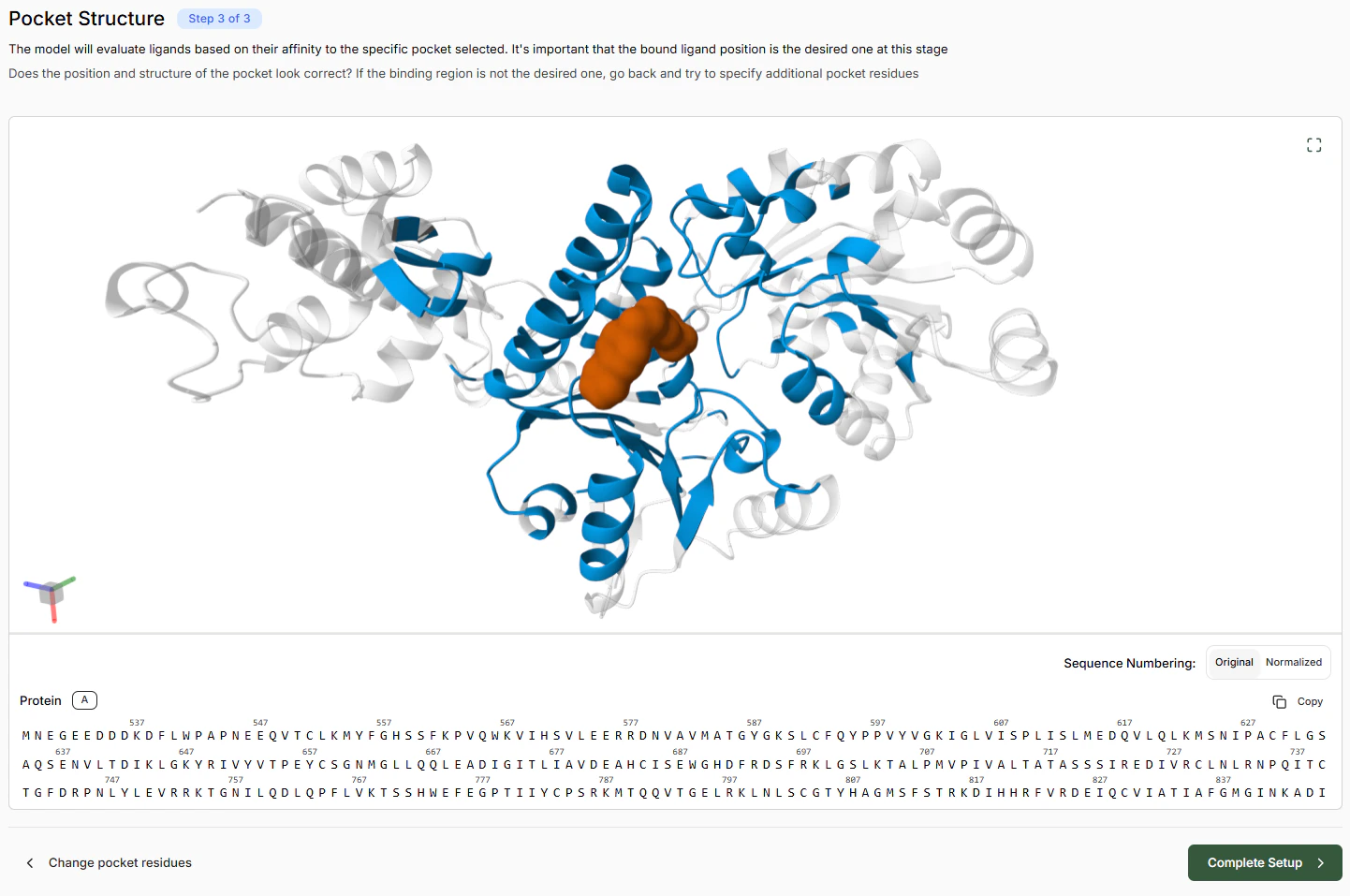
This verification step is important because from this point onwards the model will use the identified pocket as the specific target for all molecules. If the probes are bound to the wrong pocket, return to the previous screen and select more pocket residues.
Once complete, you are ready to set up an Experiment and begin a Virtual Screen.
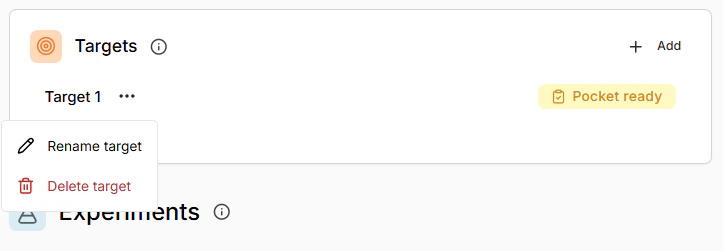
To avoid conflicts, currently Targets that have completed setup cannot be deleted.Targets in progress can be deleted be selecting from the three dot menu in the Target list.
Assistant
Responses are generated using AI and may contain mistakes.