

API Keys enable programmatic access to Boltz Lab through the Python SDK and CLI. Generate keys for automated workflows, CI/CD pipelines, and application integrations.Documentation Index
Fetch the complete documentation index at: https://docs.boltz.bio/llms.txt
Use this file to discover all available pages before exploring further.
API Key List
The API Keys page displays all keys created for your organization:| Column | Description |
|---|---|
| Owner | Person of responsibility for the key |
| Key | The key identifier (prefix shown, full key hidden for security) |
| Created at | Timestamp of creation date (important for expiration time) |
| Last used at | Timestamp of the most recent API call using this key |
Creating an API Key
Click + Create API Key to generate a new key.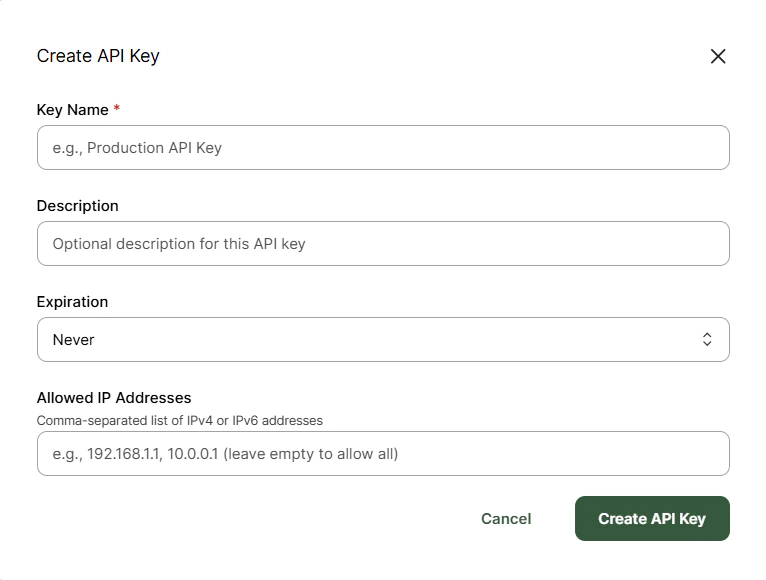
Configuration Options
| Field | Required | Description |
|---|---|---|
| Key Name | Yes | A descriptive name to identify the key’s purpose (e.g., “Production API Key”, “CI Pipeline”) |
| Description | No | Optional notes about the key’s intended use |
| Expiration | No | When the key should expire. Options include: 1 day, 30 days, 90 days, Never |
| Allowed IP Addresses | No | Restrict key usage to specific IP addresses for enhanced security |
Key Name Best Practices
Use descriptive names that indicate:- The environment (Production, Staging, Development)
- The application or service using the key
- The team or person responsible
Production API KeyJenkins CI PipelineComputational Chemistry TeamExternal Partner - Acme Corp
IP Address Restrictions
For enhanced security, you can restrict API key usage to specific IP addresses:- Enter a comma-separated list of IPv4 or IPv6 addresses
- Leave empty to allow access from any IP address
- Useful for production environments with known server IPs
192.168.1.1, 10.0.0.1, 2001:db8::1
Managing Existing Keys
Viewing Key Details
Click on any key row to view its configuration details including:- Creation date
- Last used timestamp
- IP restrictions (if any)
- Expiration date (if set)
Revoking a Key
To revoke an API key:- Click on the key row
- Select Revoke Key
- Confirm the revocation
Using API Keys
For a complete guide on using the API, please view the documentation in the appropriate top tab. Organizations are responsible to the security of any API keys they generate, and all usage generate with them.Security Best Practices
API key management requires Admin-level access to organization settings.